Back to blog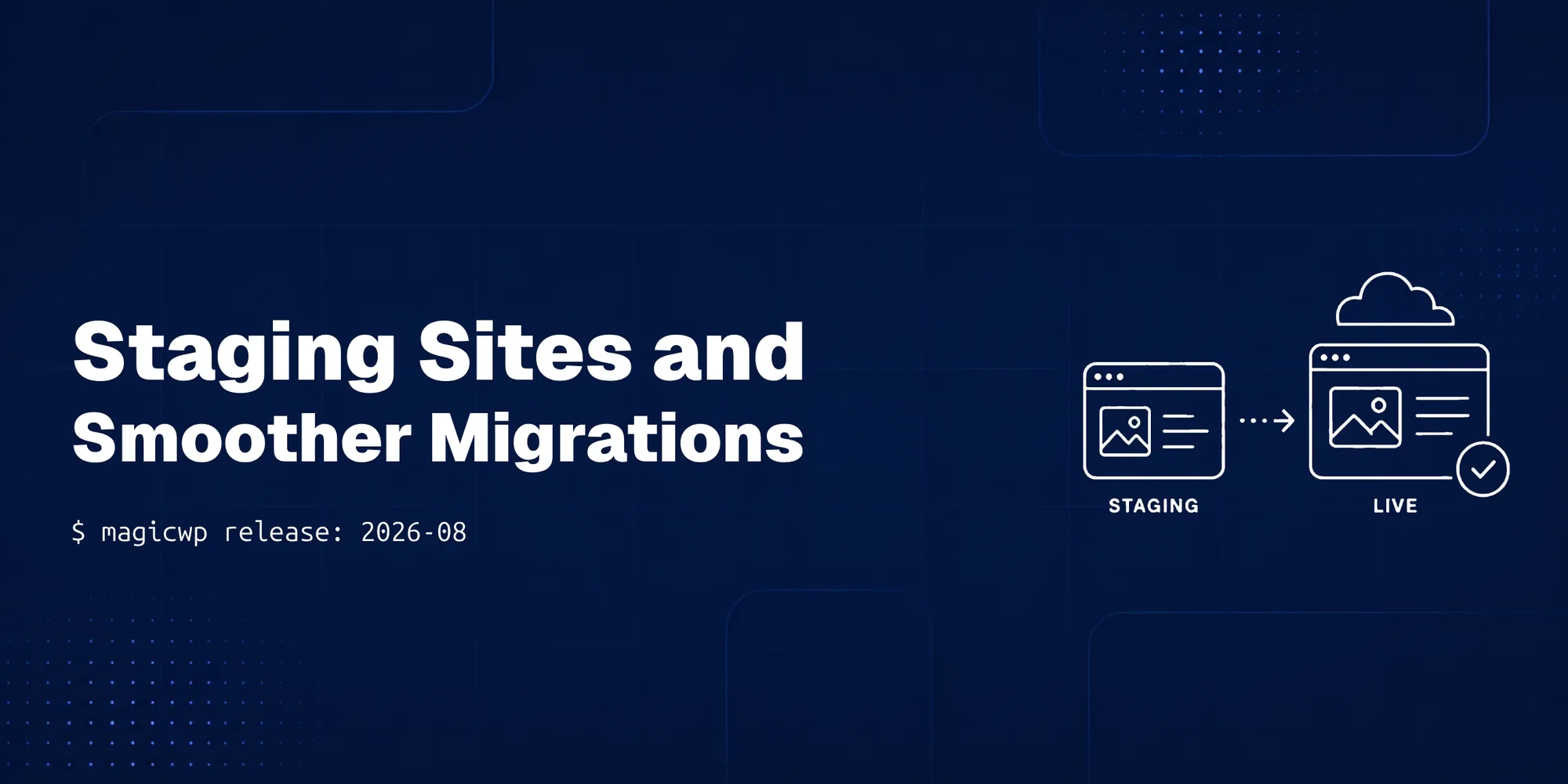
MagicWP Updates: Staging Sites and Smoother Migrations
Test changes on a full copy of your live site and push them live in one action, manage Cloudflare from the Domain page, and clean up your database from the dashboard.
The headline this month is staging sites: a complete copy of your live site where you can test a plugin update, try a new theme, or rebuild a page with nobody watching, then push it live in one action — with a full backup taken first, so nothing is one-way. Alongside it, Cloudflare now connects with a single scoped token and is managed from the Domain page, the Database page can clean up and optimize your tables, and a batch of migration fixes make restored sites behave. Plus a reorganized dashboard that groups related tools together.
Here's what shipped, starting with the three that matter most.
TL;DR
- Staging sites — a full copy of your live site (files, database, plugins, themes) on its own address. Test freely, then push to live in one action, with a full backup taken before every push.
- Cloudflare from the Domain page — connect once with a scoped API token; DNS records are written for you, and proxy, SSL mode, cache purge, Under Attack mode and XML-RPC blocking all live on the Domain page.
- Database optimization — see table sizes and reclaimable space, rebuild tables in one click, and clear out revisions, spam, trashed posts, and expired transients, each counted first.
- Migration fixes — Fix Site now repairs a restored site's database connection, and database prefix changes work on sites that arrived from a backup.
- More WordPress from the dashboard, a reorganized sidebar, per-site activity logs, larger uploads, and a couple of security hardening fixes.
Staging sites
A staging site is a complete copy of your live site — files, database, plugins, and themes — running on its own address. The point is a safe place to make changes that would be risky to make on a live site people are using. Update a plugin, try a new theme, rebuild a page, or work through a full redesign, all where no visitor can see it. When you're happy, you push it across to live in one action.
The reason this matters comes down to a problem every site owner eventually hits: the change you need to make is exactly the change that might break something. A major plugin update can conflict with your theme. A redesign looks right in your head and wrong on the actual site. Testing those on the live site means your visitors see the breakage while you fix it. Staging removes that trade-off — you find the problems before anyone else does.
Two things make it safe to actually rely on:
- Your live site keeps running the whole time. Working on staging doesn't touch live. Visitors keep hitting the current site normally while you rebuild the copy.
- A full backup is taken before every push. Pushing staging to live is the moment of risk — it's when your changes replace what's currently live. Backing up first means that if the pushed version has a problem you didn't catch, you can roll live back to how it was. Nothing is one-way.
The natural rhythm is: spin up staging, make and test your changes there, push when it's right, and if something's off, restore the pre-push backup. It turns "I hope this update doesn't break anything" into "I already checked."
A note on staging drift: If your live site keeps changing while you work on staging — new orders, comments, form entries — those live changes won't be on staging, and a push can overwrite them. For content-heavy or transactional sites (stores, active blogs), keep the staging-to-push window short, or plan the push for a quiet period, so you're not pushing stale content over fresh live data.
Cloudflare from the Domain page
Connecting a site to Cloudflare takes one scoped API token, created once and pasted in. We tell you exactly which four permissions to tick and, importantly, to scope the token to the single zone you're connecting — so it can touch that domain and nothing else in your Cloudflare account. It doesn't expire, so it's genuinely a one-time step.
From there the platform writes the DNS records for you, and the proxy, SSL mode, cache purge, Under Attack mode and XML-RPC blocking all live on the Domain page — so you manage them from the dashboard rather than bouncing over to Cloudflare's. Cache purge works two ways: clear the whole zone, or paste specific paths and clear only those, which is what you want after fixing one post rather than throwing away every cached image on the site.
A word on what the SSL mode setting means, since it's the one that trips people up. Cloudflare's encryption mode controls how Cloudflare talks to your origin server. Full (Strict) encrypts that connection and verifies the certificate — it's the mode Cloudflare recommends for a properly secured setup. Flexible mode, by contrast, encrypts only the visitor-to-Cloudflare hop and sends plain HTTP to your origin; it shows a padlock in the browser while leaving the origin connection unencrypted, and it's a common cause of redirect loops. Having the mode exposed on the Domain page is useful precisely because picking the wrong one is a classic Cloudflare mistake — the guidance is to use Full (Strict) whenever your origin supports it.
The manual route is rebuilt too, for anyone who prefers it: it now shows both the records and click-to-copy, so hand-configuring DNS is less error-prone than typing values across two tabs.
Version-dependent: Cloudflare's dashboard, the API Tokens screen and the SSL mode options can change on their side over time. The step-by-step in our Domain docs tracks the current screens; if the labels or menu locations differ from what you see, follow Cloudflare's. The encryption-mode meanings above are stable — the wording around them is Cloudflare's to change.
Database optimization
The Database page can now clean up and optimize your tables without a plugin or a manual query. It reports table sizes and reclaimable space, so you can see where the bloat is; rebuilds tables in one click; and clears out the usual accumulated junk — revisions, spam, trashed posts, and expired transients.
The detail that makes this trustworthy: each category is counted first, so before you remove anything you see exactly what's going — how many post revisions, how much spam, how many expired transients. You're not clicking a vague "optimize" button and hoping; you're removing a specific, known amount.
Why this matters: a WordPress database quietly fills up over time. Every saved draft leaves post revisions, spam comments pile up, deleted posts sit in the trash, and expired transients (temporary cached data) linger. None of it is doing anything useful, and on a busy site it can add up to a meaningfully larger, slower database. Clearing it is routine maintenance that used to mean installing an optimization plugin or running SQL by hand. Now it's on the Database page, counted and reversible-by-awareness — you see what you're removing before it goes.
Two related fixes shipped with it. The Reclaim button previously failed with a connection error on sites running newer PHP versions; it now works on every PHP version and reports how many tables it optimized. And a rebuilt Database page brings credentials, phpMyAdmin, and the database tools together under tabs, with a Site Summary panel beside them so your connection details stay visible as you move around. Database password, database prefix, and search-and-replace moved here from Tools, so everything database-related is in one place.
Smoother migrations: restored sites that actually work
A cluster of fixes this month targets the same pain: a site restored from a backup taken somewhere else often doesn't quite work, because it's still carrying settings from its old home. These make restored sites behave.
Fix Site now repairs the database connection. When you restore a backup from another host — a Duplicator archive, say — WordPress is still pointed at that host's database. Previously you'd have to edit wp-config.php over SFTP to fix it. Now Fix Site rewrites the database connection and Redis settings from your site's own environment, so a restored site connects without you touching a config file. It also no longer refuses to run when the broken database connection is the very thing you're trying to fix — which was a frustrating catch-22, since that's exactly when you need it.
Database prefix changes work on restored sites. Renaming tables could fail with a "no tables found" error on a site that arrived from a backup, because the current prefix was being looked up in the wrong place. It's now read from the site itself. The platform also confirms the tables are actually there before starting, so a failed attempt no longer leaves your site stuck in maintenance mode — a much safer failure behavior.
More of WordPress, from the dashboard
WP Settings now handles more of what used to mean a trip into wp-admin. It checks for WordPress core updates and applies them in one click, and it verifies your core files against the official hashes — a genuine security check that confirms your core files haven't been tampered with or corrupted, by comparing them to WordPress.org's published checksums. It also adds Disable Comments and Search Engine Visibility toggles, so those settings are a dashboard click rather than a wp-admin visit.
The core-file verification is worth calling out. Modified core files are a classic sign of a compromised site — malware often injects itself into core files that should be identical to the official release. Checking them against the official hashes is how you catch that, and having it one click away makes it something you'll actually do.
Fixes, hardening, and a reorganized dashboard
The rest of the release:
- A reorganized sidebar. Pages are now grouped into sections — Performance, WordPress, Domain & Email, Security & Data, and Management — with only the section you're in expanded. Actions that used to sit on their own pages moved into tabs inside the page they belong to, so related tools are together instead of scattered across the menu. Less hunting, more finding.
- Per-site activity logs. Every site now has its own Activity & Logs page, showing the same two-week calendar as the account activity log but scoped to that one site. Click a day to read what happened on it — useful for tracing when a change or problem started.
- Larger uploads on new sites. New sites now accept uploads up to 512 MB at the web server, up from 64 MB. The old limit could reject a large upload before WordPress or PHP ever saw it, which meant the limit you set in PHP Settings wasn't always the one that actually applied. Now it is.
- Database passwords stay out of your web root (security). Fix Site keeps a copy of
wp-config.phpbefore it changes anything, and that copy is now written outside the folder your site serves. Previously a backup file sitting next towp-config.phpcould have been fetched by anyone who guessed its name — which would have exposed your database credentials. This closes that gap. - Resetting PHP settings (security). Resetting PHP settings to defaults now restores the correct defaults. If you used Reset on a site before this update, run it once more to get the right values.
Frequently Asked Questions
What is a staging site and how do I use it?
A staging site is a complete copy of your live site — files, database, plugins, and themes — running on its own address, where you can make and test changes without any visitor seeing them. Update a plugin, try a theme, or rebuild a page, and when you're happy, push it to live in one action. Your live site keeps running the whole time, and a full backup is taken before every push, so if the pushed version has a problem you can roll live back.
Will pushing my staging site to live lose recent changes on my live site?
It can, if your live site changed while you were working on staging. A push replaces live with the staging copy, so live-only changes made in the meantime — new orders, comments, form submissions — aren't on staging and can be overwritten. For active or transactional sites, keep the window between copying and pushing short, or push during a quiet period. A full backup is taken before every push, so you can still roll back if needed.
Do I need a Cloudflare API token to connect Cloudflare?
Yes — one, created once. Our Domain docs walk through it: four permissions, and Zone Resources set to the specific zone you're connecting, which limits the token to that one domain rather than your whole Cloudflare account. It doesn't expire, so you won't be asked again. After that the platform writes your DNS records and the Cloudflare controls live on the Domain page. The manual route is still available and rebuilt with click-to-copy if you'd rather configure DNS yourself.
Which Cloudflare SSL mode should I use?
For most properly configured sites, Full (Strict) — it encrypts the connection between Cloudflare and your server and verifies the certificate, which is what Cloudflare recommends. Avoid Flexible unless you specifically can't secure your origin: it leaves the Cloudflare-to-origin connection unencrypted despite showing a padlock in the browser, and it's a common cause of redirect loops. The SSL mode setting lives on the Domain page after you connect Cloudflare.
What does database optimization actually remove?
It clears out accumulated clutter: post revisions, spam comments, trashed posts, and expired transients (leftover temporary cached data). Each category is counted before anything is removed, so you can see exactly how much of each you're clearing rather than guessing. The page also reports table sizes and reclaimable space and can rebuild tables in one click. None of what it removes is doing useful work — it's routine cleanup that keeps the database smaller and quicker.
I restored a site from a backup and it can't connect to the database. What now?
Run Fix Site. When you restore a backup taken on another host, WordPress is still pointed at that host's database. Fix Site rewrites the database connection and Redis settings from your own site's environment, so it connects without you editing wp-config.php over SFTP. It now works even when the broken database connection is the exact problem you're fixing, which previously stopped it from running.
Wrapping up
This release is about making changes safely and cleaning up after migrations. Staging sites give you a real place to test before you touch live, with a backup before every push so nothing is irreversible. Cloudflare on the Domain page puts the proxy, SSL mode and cache controls where you already are, and database optimization turns database cleanup into a counted, one-click task instead of a plugin or a manual query. The migration fixes — Fix Site repairing database connections, prefix changes working on restored sites — quietly remove the SFTP-and-config-editing that used to follow every restore.
Everything is live in the dashboard now. If you regularly update plugins or redesign sites, staging is the one to set up first — it's the difference between testing a change and hoping one works.
Get the best of MagicWP in your inbox.
Monthly engineering notes, product updates, and WordPress performance tips. No spam, unsubscribe anytime.
Join 12,000+ builders. We send one email a month.