
Back to blog
How to Back Up and Restore a WordPress Site (and Actually Test It)
A practical guide to backing up a WordPress site, restoring it without breaking serialized data, and testing that your backups actually work.
Almost every WordPress site has backups. Far fewer have backups that have ever been restored. The gap between those two facts is where sites get lost, and it usually shows up at the worst possible moment: an update breaks the site, someone goes to roll back, and the archive turns out to be missing the uploads folder, or three weeks stale, or sitting on the same server that just died.
This guide covers the whole cycle. What a WordPress backup has to contain to be useful, how to take one on any host, how to get a copy somewhere safe, and how to restore it without corrupting your database along the way. The last part matters most and gets written about least: a restore procedure you have never rehearsed is a guess, not a plan.
TL;DR
- A WordPress backup needs two separate things: the database and the files. Neither one alone restores a working site.
- Backup frequency should match how much data you can afford to lose. Retention depth is a different question, and it's the one that decides whether you survive a hack you didn't notice for a month.
- A backup stored only on the server it protects is not a backup. Get a copy off the machine.
- Never restore a URL change with a plain find-and-replace on the database. PHP serialized data stores byte lengths, and a naive replace silently corrupts theme and plugin settings.
- Restore into staging first. Verify it there. Then do production.
- Schedule a restore drill once a quarter. The time it takes is your real recovery time, and it's usually longer than people assume.
- MagicWP Backup Restore and Migration handles chunked, resumable backups and safe restores on any host. On MagicWP, automated backups and snapshots are built into the dashboard.
What a WordPress backup actually has to contain
A WordPress site is two things stored in two different places, and this trips up more people than any other part of the topic. The WordPress Advanced Administration Handbook is explicit about it: there are two parts to backing up a site, the database and the files, and you need both to fully restore.
The database holds everything that looks like content plus most of what looks like configuration. Posts, pages, custom post types, categories, comments, users and hashed passwords, menus, widget settings, theme customizer values, plugin settings, WooCommerce orders and customers, and every option in wp_options. If you download your entire site directory over SFTP, you have captured none of this, because the database lives in a separate MySQL or MariaDB server outside the WordPress folder.
The files hold everything the database references but doesn't store. WordPress core, your theme, your plugins, and critically wp-content/uploads, which is every image, PDF, and video anyone has ever added to the media library. Also wp-config.php, .htaccess if your server uses one, and wp-content/mu-plugins if anything lives there.
Things people routinely leave out: must-use plugins, which don't appear in the plugins list and are easy to miss in an exclusion rule; anything stored outside the web root; and custom child theme code that was never in version control.
Then there's what a site backup will never capture, which is worth knowing before you rely on one during an incident:
- DNS records
- Your email provider configuration and API keys
- Server-level cron jobs
- CDN and firewall rules
- SSL certificates (usually reissued automatically, but not always)
- Plugin licence activations, which are often tied to a domain and need reactivating after a restore to a different URL
Write those down somewhere separate. A restored site with unreachable DNS is still a down site.
Frequency and retention are two different decisions
This is where most backup advice goes vague, and it's the part that actually determines whether a backup helps you.
Frequency answers: how much work can I afford to lose? If you back up daily at 3am and the site breaks at 6pm, you lose everything created in fifteen hours. On a blog that publishes twice a week, that's nothing. On a store taking thirty orders a day, that's thirty orders you now have to reconstruct from payment processor records and customer emails.
| Site type | Reasonable frequency | Why |
|---|---|---|
| Brochure site, rarely edited | Weekly, plus before every change | Almost nothing changes between edits |
| Blog, a few posts a week | Daily | A day of lost drafts is annoying, not fatal |
| Active blog with comments | Daily | Comments accumulate continuously |
| WooCommerce store | Daily minimum, more if volume is high | Every lost hour is lost orders |
| Membership or LMS site | Daily minimum | Progress, subscriptions, and user data change constantly |
| Any site, before an update | On demand, always | The cheapest insurance there is |
Retention answers a completely different question: how far back can I go? This is the one people get wrong, because it only matters in the scenario nobody plans for.
A bad plugin update announces itself immediately. You notice within minutes and roll back to yesterday. Twenty-four hours of retention is plenty.
A compromised site does not announce itself. A backdoor gets planted, sits quietly, and surfaces weeks later when the site starts serving spam or Google flags it. By then, every backup you hold is a backup of a compromised site. If your retention window is a week and the infection is three weeks old, you have nothing clean to restore. This is exactly why hosts that keep only recent snapshots also keep longer-term monthly copies, and why "we back up every hour" is not automatically better than "we keep a copy from last month."
Think of it as two overlapping requirements: recent backups for operational mistakes, older backups for security incidents.
Prerequisites
Before you start:
- Administrator access to the WordPress site, and ideally SSH or SFTP access as well.
- Somewhere to store a copy off the server. Cloud storage, a NAS, or just a folder on a machine that gets backed up itself.
- A staging environment or a place to test a restore. On MagicWP this is one click; see the WordPress hosting documentation. Elsewhere, a subdomain install or a local environment works.
- PHP 8.1 or later and WordPress 6.2 or later if you plan to use the MagicWP Backup Restore and Migration plugin. Check the plugin page for the current requirements, since they change between versions.
- Roughly an hour, most of it waiting for archives to build and restores to run.
If you're doing this because the site is already broken, skip ahead to Step 4, but read Step 5 before you touch production.
Step 1 - Decide what you're protecting against
Different failures need different things from a backup. Being explicit about which ones matter to you stops you over-engineering one and ignoring another.
| Failure | What you need | What won't save you |
|---|---|---|
| Bad update or bad edit | A backup from a few hours ago, restorable in minutes | Deep retention |
| Site hacked | A backup from before the compromise, plus a way to identify when it happened | Frequent backups with short retention |
| Server or host failure | A copy stored somewhere other than that server | Anything stored in wp-content |
| Someone deleted the wrong thing | Recent backup, and ideally database-only restore | Full-site-only restore, which reverts everything |
| Ransomware or credential compromise | An off-site copy the attacker's credentials can't reach | A backup service logged in from the same compromised account |
| Failed migration | A snapshot taken immediately before you started | Yesterday's backup, if you've made changes since |
Two things fall out of this table. Database-only and files-only restores are genuinely useful, not just a feature checkbox: if a client deletes a page but you've also updated three plugins since the last backup, restoring only the database gets the page back without reverting the updates. And the off-site copy is not optional. An archive sitting in wp-content/backups protects you against exactly one scenario, you breaking something in WordPress. It does nothing about the server failing, the account being suspended, or an attacker with file access deleting it alongside everything else.
Step 2 - Take a backup
Three routes, depending on your setup. They aren't mutually exclusive and the strongest setups use more than one.
Step 2.1 - Host-level backups
If your host takes backups at the infrastructure level, that's your baseline, and it's the one that survives WordPress itself being broken.
On MagicWP, every site is backed up automatically with nothing to configure: a daily backup every 24 hours and a monthly copy for longer retention. Those automated backups can be restored but not renamed or deleted, which is deliberate. A backup you can accidentally delete from the same panel you administer the site from is a backup with a single point of failure.
Alongside those, you can take snapshots on demand, which is what you want before any risky change. Open your site in the dashboard, go to Backups, click Create Snapshot, optionally name it, and choose what to capture:
- Full Backup (files and database, the default)
- Files Only
- Database Only
Two limits worth knowing before you build a routine around snapshots: you can keep up to five snapshots at a time, and each is kept for about 24 hours before it's removed automatically. Snapshots are pre-change insurance, not archival storage. If you want to keep one longer, download it (covered in Step 3). Full details are in the backups documentation.
Step 2.2 - Plugin backups on any host
Host backups are only as good as your host. If yours doesn't offer them, offers them only on a plan you're not on, or you simply want a copy under your own control, a plugin fills the gap. This also applies if you're on a host other than MagicWP, since the plugin has no dependency on our infrastructure.
Install and activate MagicWP Backup Restore and Migration, then open MagicWP Backup in the admin sidebar and run the system self-test before doing anything else. That check exists because the most common backup failure on shared hosting is not a bug, it's the environment: not enough memory, a PHP execution time limit that kills the process halfway, or no writable temp directory. Finding that out from a self-test beats finding it out from a half-written archive.

To install the plugin, you have two simple options:
- Manual Installation: Download it directly from WordPress.org and upload it to your site.
- Automatic Installation: Log in to your MagicWP dashboard, head over to Themes & Plugins in the sidebar, and search for the slug
magicwp-backup-restore-migrationto install it with one click.
The plugin's backups are chunked and resumable, meaning the archive is built in pieces across multiple requests rather than in one long-running process. This is the specific design decision that makes large sites backupable on hosts with tight max_execution_time and memory limits. A single-pass backup on a 20GB uploads directory will time out on most shared hosting; a chunked one won't.
Before your first run, check the exclusion settings. The plugin offers quick toggles for Plugins, Themes, Uploads, Must-use plugins, and Cache, plus additional excluded paths and an exclude files larger than (MB) limit.
Some honest guidance on exclusions, because the defaults people choose are often wrong:
- Excluding cache is almost always right. Cache directories are regenerable, often large, and restoring stale cache files causes more problems than it solves.
- Excluding uploads is almost always wrong, unless you have a separate, verified backup of them. This is the single most common way people end up with a backup that restores to a site full of broken images.
- Excluding plugins and themes is a judgement call. Plugin and theme code is re-downloadable from the repository, so excluding it makes archives much smaller. But premium plugins aren't in the repository, and a customized child theme exists nowhere else. Exclude only if you know exactly what you'd be re-downloading and from where.
- The file size limit is a trap on media-heavy sites. Set it to skip 50MB files and you have quietly excluded every video in the media library.
The plugin also keeps a structured log of backup, restore, and migration operations with level filtering and export, which is where you look when something doesn't complete.
Step 2.3 - Manual backup over SSH
If you have SSH and WP-CLI, a manual backup takes about a minute and is worth knowing regardless of what else you use. MagicWP provides SSH access on every site; other hosts vary.
# Database
wp db export "db-$(date +%F).sql"

# Files (wp-content is the part that isn't re-downloadable)
tar -czf "files-$(date +%F).tar.gz" wp-content wp-config.php

# Confirm the archive isn't empty or truncated
ls -lh db-*.sql files-*.tar.gz
tar -tzf "files-$(date +%F).tar.gz" | head
That last check matters. A .tar.gz that got cut short by a disk quota still looks like a file until you try to read it. Note also that wp db export writes uncompressed SQL, which on a large site can run to several gigabytes; pipe it through gzip if disk space is tight.
Step 3 - Get a copy off the server
This is the step people skip, and it's the one that separates a backup from a false sense of security.
On MagicWP, use the Download action on a snapshot, then Prepare download. The platform packages the backup and emails a secure link to your account address. The link is valid for 48 hours, and only one download is prepared per site at a time. Download it and put it somewhere that isn't the server.
With the plugin, download the archive through the admin screen or pull it over SFTP. The plugin's documented workflow is local archives plus download and direct site-to-site migration; if you need automatic upload to remote object storage, check the plugin page for current options rather than assuming.
The general principle is the 3-2-1 rule, which predates all of this and still holds: three copies of your data, on two different kinds of storage, with one of them somewhere else entirely. For a WordPress site that usually means production, a host-level backup, and a downloaded archive in cloud storage or on a machine you control.
Security warning: never leave backup archives in a web-accessible directory. A
.zipor.sqlfile inwp-contentor the site root can be found and downloaded by anyone who guesses the filename, and it contains your entire database, including user records andwp-config.phpwith your database credentials. This is a real and regularly exploited exposure, not a theoretical one. If you must stage an archive on the server temporarily, put it outside the web root or block access at the server level, and delete it when you're done.
The same logic applies to where your off-site copy lives. If it's in a cloud account that uses the same password as your WordPress admin, an attacker who gets one gets both.
Step 4 - Restore
Restoring is destructive by definition. It replaces what's currently there. Read this whole step before running anything.
Before any restore, take a fresh backup of the current state. This sounds redundant and isn't. If the restore turns out to be from the wrong date, or the archive is corrupt, or the problem you were fixing turns out to have been in the backup too, a snapshot of the broken-but-known state is what lets you go sideways instead of forward into something worse.
Step 4.1 - Restoring on MagicWP
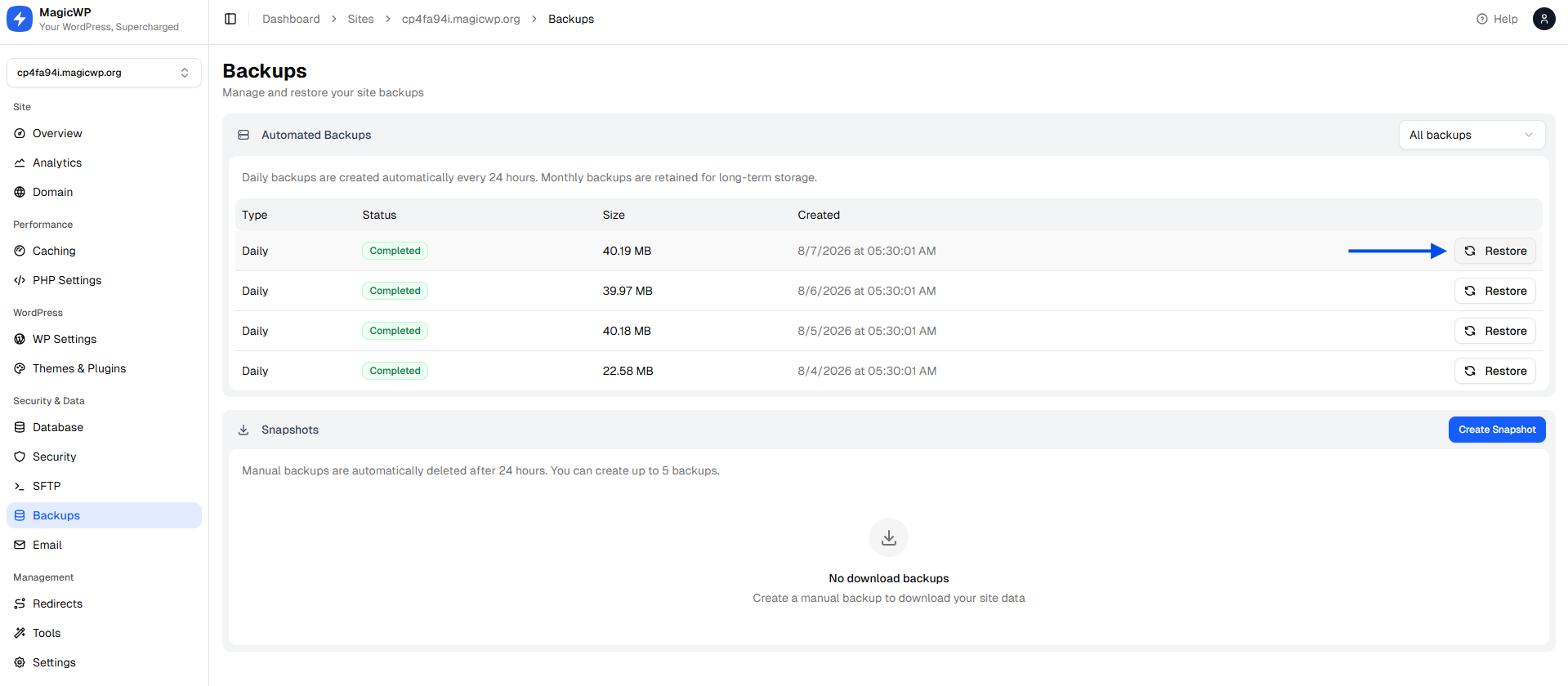
Open the site's Backups page, click Restore on the backup you want, and choose a Restore Type: Full, Files Only, or Database Only. A files-only or database-only snapshot can only be restored as that type, which is the obvious constraint but catches people who took a database-only snapshot and later need the files.
Confirm, and the restore runs in the background. A restore usually takes 5 to 15 minutes, your site is briefly unavailable during it, and you get an email when it finishes.
The important caveat, stated plainly in the documentation: a restore overwrites your current files and database with the backup's version and cannot be undone. That's what the snapshot in the paragraph above is for.
Step 4.2 - Restoring with the plugin
The plugin's restore screen works from a backup already on the site or from an archive you upload, and it gates the operation behind a destructive-action confirmation. Three things it does under the hood are worth understanding, because they're the parts that go wrong in naive restores.
Integrity validation. The archive is checked before anything is overwritten. Restoring from a truncated archive is how a recoverable situation becomes an unrecoverable one, since you've now destroyed the working site and replaced it with a partial copy.
Automatic table prefix remapping. WordPress stores its table prefix in wp-config.php, and a backup from a site using wp_ restored onto an install expecting xyz_ will produce a site that appears to have no content at all. The plugin remaps the prefix rather than leaving you to hand-edit config. This is the single most common cause of "I restored the backup and the site is a fresh WordPress install."
Serialized-safe URL search and replace. This is the one that deserves a real explanation, because it's where hand-rolled restores silently corrupt data.
WordPress stores complex settings, particularly from themes and page builders, as PHP serialized strings. A serialized string encodes its own byte length:
s:23:"https://old.example.com";The 23 is the number of bytes in the value. Run a plain SQL REPLACE() to swap https://old.example.com for https://example.com and you get:
s:23:"https://example.com";The length prefix now says 23 when the string is 19 bytes. PHP cannot unserialize it, so the option fails to load. WordPress doesn't throw a visible error; the setting just quietly reverts to its default. On a page-builder site, this is how you end up with a restored site where every layout has vanished and nobody can explain why. The plugin unserializes, replaces, and reserializes with corrected lengths, which is the only safe way to do it.
The plugin also keeps the destination site's wp-config.php rather than overwriting it with the one from the archive. That's the correct behaviour when restoring onto a different server, since the archive's config contains the source server's database credentials and would break the connection entirely.
If you'd rather do it from the command line, WP-CLI's search-replace handles serialization correctly too, and supports a dry run:
wp search-replace 'https://old.example.com' 'https://example.com' --all-tables --dry-runRead the dry run output before removing the flag.
Step 4.3 - Manual restore over SSH
# Restore files
tar -xzf files-2026-08-05.tar.gz

# Restore the database (this drops and recreates existing tables)
wp db import db-2026-08-05.sql

# Fix URLs if the domain changed, serialization-safe
wp search-replace 'https://old.example.com' 'https://example.com' --all-tables

# Flush anything stale
wp cache flush
wp rewrite flush
If you're restoring after a suspected compromise, verify core files afterwards:
wp core verify-checksumsThat compares your core files against the official checksums for your WordPress version and reports anything modified or unexpected. It does not check themes, plugins, or uploads, so it's a starting point rather than a clean bill of health.
Step 5 - Restore into staging first
If there is one habit worth taking from this article, it's this one.
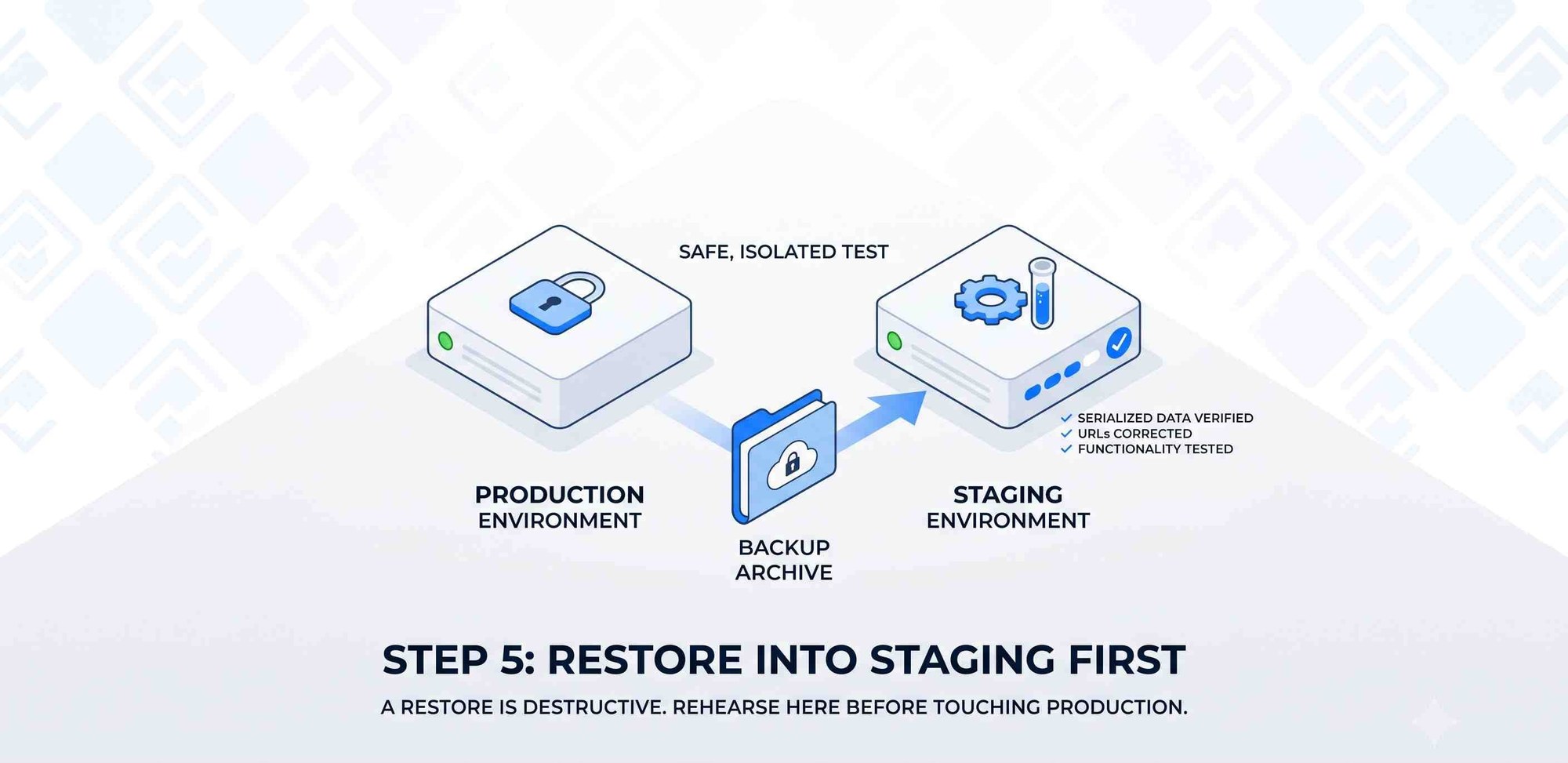
A restore is destructive and irreversible. Running it directly on production means the first time you find out whether the archive is good is also the moment your live site is already gone. Restoring into a staging environment or a clone costs a few extra minutes and turns a one-way door into a reversible test.
On MagicWP, clone the site or use the one-click staging environment, restore the backup there, and check it. On other hosts, a subdomain install or a local environment does the same job.
There's a second benefit. A restore into a different URL exercises the search-replace path, the prefix remapping, and the config handling all at once, so if any of them are going to fail, they fail somewhere it doesn't matter. The only time to skip staging is when production is already down and unrecoverable, because at that point there's nothing left to lose.
Step 6 - Verify the restore
"The homepage loaded" is not verification. Work through this list:
- Homepage and a few inner pages render with correct styling. Missing CSS usually means a URL mismatch.
- Log into wp-admin. If passwords don't work, the database restored but the users table may not have.
- Permalinks. Visit a post directly. A 404 usually means rewrite rules need flushing, not that the content is missing.
- Media. Open the media library and load a full-size image. Broken thumbnails mean uploads didn't restore or URLs weren't replaced.
- Old URLs in the database. Search for the previous domain:Adjust the prefix if yours isn't
wp db query "SELECT option_name FROM wp_options WHERE option_value LIKE '%old.example.com%' LIMIT 20;"wp_. - Site URL settings match what you expect:
wp option get siteurl wp option get home - Forms and email. Submit a contact form. Email configuration often lives partly outside the site.
- WooCommerce, if applicable: order list loads, a product page renders, add-to-cart works, and the most recent order matches what you expected to keep.
- Mixed content. Open the browser console on a few pages and look for HTTP resources on an HTTPS site.
- Scheduled tasks. Check
wp cron event listfor a pile of overdue events, which is normal immediately after a restore but should clear. - Plugin licences. Premium plugins tied to a domain may need reactivating, particularly after restoring to staging.
If you restored to staging and everything passes, repeat on production with confidence rather than hope.
Step 7 - Automate it (Optional)
Manual backups work right up until the week you're busy.
Version 1.1.0 of the plugin added scheduled backups, daily or weekly, running unattended via WP-Cron, along with optional email notifications on success and failure and a retention rule that keeps the newest N backups alongside the delete-by-age cleanup.
Turn the failure notifications on. A backup system that fails silently is worse than no backup system, because you'll believe you're covered.
One caveat that applies to any WP-Cron-driven scheduled task, and that few backup plugins mention: WP-Cron is triggered by site traffic, not by the clock. On a site with steady visitors, a daily backup scheduled for 3am fires close to 3am. On a low-traffic site that goes hours without a visitor, it fires whenever someone next shows up, which may be well outside your maintenance window. If precise timing matters, disable WP-Cron and drive wp cron event run --due-now from a real system cron. On MagicWP, host-level automated backups sidestep this entirely, since they don't depend on WordPress running at all.
Set retention deliberately rather than accepting the default. Going back to Step 1: keep enough recent copies for operational mistakes, and at least one older copy for the security scenario.
Step 8 - Run a restore drill (Optional, but this is the point)
Put a recurring event in the calendar. Once a quarter is a reasonable cadence for most sites; monthly if the site carries revenue.
The drill is simple:
- Pick a backup at random, not the newest one.
- Restore it into staging.
- Work through the Step 6 checklist.
- Write down how long the whole thing took, from deciding to restore to having a verified working site.
That number is your actual recovery time, and it's almost always longer than people estimate. It includes finding the backup, waiting for the download link, waiting for the restore, and working through verification. If the honest answer is four hours and your business can tolerate one, you've learned something useful while nothing was on fire.
The drill also catches the failures that only appear on restore: an exclusion rule that was quietly dropping uploads, a backup job that has been failing since a PHP upgrade, an archive stored in an account nobody has credentials for any more.
Troubleshooting
| Symptom | Likely cause | Fix |
|---|---|---|
| Backup starts then stops partway | PHP time or memory limit | Run the plugin's system self-test; chunked backups exist for this, but very tight limits may still need raising |
| Restored site shows a fresh WordPress install | Table prefix mismatch | Use a restore that remaps the prefix, or correct $table_prefix in wp-config.php |
| Page builder layouts blank after restore | Serialized data corrupted by a plain find-and-replace | Restore again and use a serialization-safe search-replace |
| Images broken after restore | Uploads excluded from the backup, or URLs not replaced | Check exclusion settings; run a serialization-safe search-replace |
| All posts return 404 | Rewrite rules not regenerated | wp rewrite flush, or re-save permalinks in wp-admin |
| Can't log in after database restore | Restoring a database from a different site, or an incomplete users table | Reset the password with wp user update over SSH |
| Backup archive is much smaller than expected | An exclusion toggle or the file size limit is active | Review exclusions before the next run |
| Site down during restore | Expected | On MagicWP a restore takes roughly 5 to 15 minutes with brief unavailability |
| Download link expired | MagicWP snapshot download links are valid 48 hours | Prepare a new download |
| Snapshot disappeared | Snapshots are kept about 24 hours by design | Download anything you need to keep; use automated daily or monthly backups for retention |
Frequently Asked Questions
How often should I back up my WordPress site?
Match it to how much work you'd have to redo. A rarely-edited brochure site is fine on weekly backups plus an on-demand one before every change. An active blog wants daily. A WooCommerce store wants daily at minimum, and more often if order volume is high, because every hour between backups is orders you'd have to reconstruct manually. Separately from frequency, keep at least one older backup for security incidents you might not notice for weeks.
Do I need a backup plugin if my host already backs up?
Not necessarily, but understand what your host's backups cover, how far back they go, and whether you can download a copy. Host-level backups are usually more reliable than plugin backups because they don't depend on WordPress or PHP limits. What they don't give you by default is a copy under your own control, which matters if you ever leave the host or lose account access. Many people run both.
Can I restore a WordPress backup to a different domain?
Yes, and this is the normal case for staging. The restore needs to replace the old URL throughout the database, which has to be done in a serialization-safe way rather than with a plain SQL find-and-replace. The MagicWP plugin does this as part of restore, and WP-CLI's search-replace command handles it correctly from the command line. You'll also want to noindex the copy so search engines don't index a duplicate.
What's the difference between a backup and a snapshot?
In practice, a backup is the scheduled, retained copy and a snapshot is the on-demand one you take right before a risky change. On MagicWP the distinction is concrete: automated daily and monthly backups are managed and retained for you, while snapshots are yours to create, limited to five per site, and kept for around 24 hours. Snapshots are pre-change insurance, not archival storage.
Will restoring a backup remove malware?
Only if the backup predates the compromise, which is the hard part. Malware often sits undetected for weeks, so recent backups are usually infected too. Before restoring, work out when the compromise happened by checking file modification dates, unfamiliar admin users, and server logs, then restore from before that point. After restoring, change every password, rotate database credentials and API keys, run wp core verify-checksums, and update everything. If you can't establish a clean date, a restore alone isn't enough.
Can I back up a very large site on shared hosting?
Usually yes, with the right approach. The reason large-site backups fail on shared hosting is PHP execution time and memory limits killing a single long-running process. A chunked, resumable backup builds the archive across many short requests instead, which is what the MagicWP plugin does. If it still fails, the self-test will tell you which limit is the problem, and excluding cache directories often removes a surprising amount of weight.
Where should I store WordPress backups?
Anywhere except only on the server they protect. The standard baseline is three copies on two kinds of storage with one somewhere else entirely. For a WordPress site that typically means the live site, a host-level backup, and a downloaded archive in cloud storage. Never leave backup archives in a web-accessible folder, because they contain your full database and config credentials and can be downloaded by anyone who finds the filename.
Conclusion
Backing up a WordPress site is easy. Being able to restore one is a separate skill, and it's the one that decides how a bad day goes. The pieces that matter are unglamorous: capture both the database and the files, keep enough retention depth to survive a compromise you didn't spot immediately, get a copy off the server, handle serialized data correctly on restore, and test into staging rather than finding out on production.
If you take one action after reading this, make it the drill in Step 8. Restore a backup into staging this week and time it. Whatever you find, you'll be in a better position than the version of you that assumed it would work.
For sites on MagicWP, automated daily and monthly backups run without configuration and on-demand snapshots take a couple of clicks before any risky change. For every other host, the plugin does the same job from inside WordPress.
Next steps
- MagicWP Backup Restore and Migration on WordPress.org - install, changelog, and current requirements
- MagicWP backups documentation - automated backups, snapshots, restore types, and limits
- MagicWP search and replace - bulk-replacing URLs across the database safely
- MagicWP database documentation - credentials and temporary phpMyAdmin access
- MagicWP SFTP documentation - pulling archives off the server
- WordPress Advanced Administration Handbook: Backups - the official reference on what to back up and why

Get the best of MagicWP in your inbox.
Monthly engineering notes, product updates, and WordPress performance tips. No spam, unsubscribe anytime.
Monthly engineering notes and product updates.